
Quick Start Guide
Welcome to your Thryv Adapt Quick Start Guide
The goal of this guide is to get you comfortable with the software
so you can get the most out of Thryv.
Do Business Easier. Be Easier To Do Business With.
Thryv's end-to-end client experience platform helps you get the job, manage the job, and get credit.
Helping you meet today's customer's expectations
all from a single screen,
with one simple software so you can reach more customers, stay organized and get paid faster.
What's included:
- Getting Started Guide to help you get set-up and using Thryv.
- Links to features with more ways to connect with your customers.
- Resources and Tools with links to Support Center, Facebook Group, and daily Webinars.
Getting Started with Thryv
Follow these simple steps to help you get set-up.
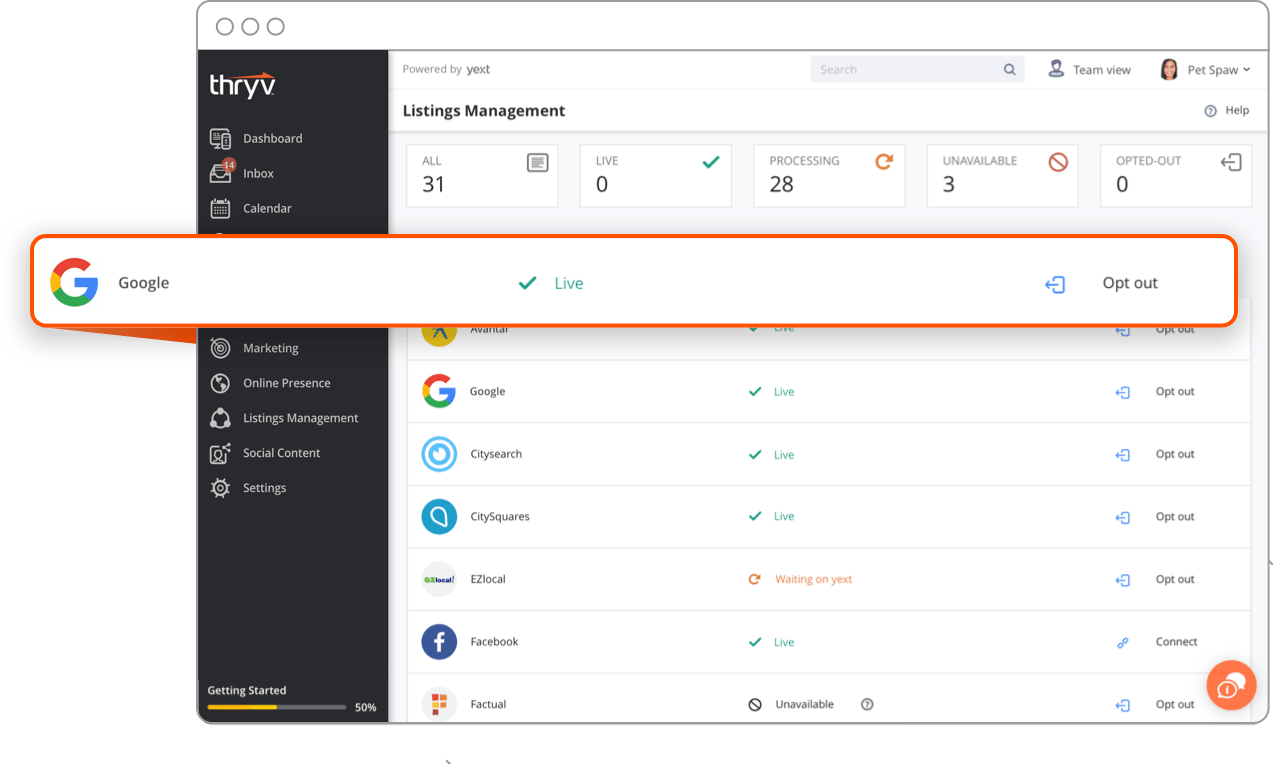
1. Create your business profile
To get started, enter all of your business information under Listings Management > Listings Overview.
Thryv will automatically lock and sync your business information across 60+ listings sites. It takes about 72 hours to sync and update your listings.
Add a featured message and a call to action to make your online listings even more powerful. Such as "Curbside pick-up available, Schedule today."
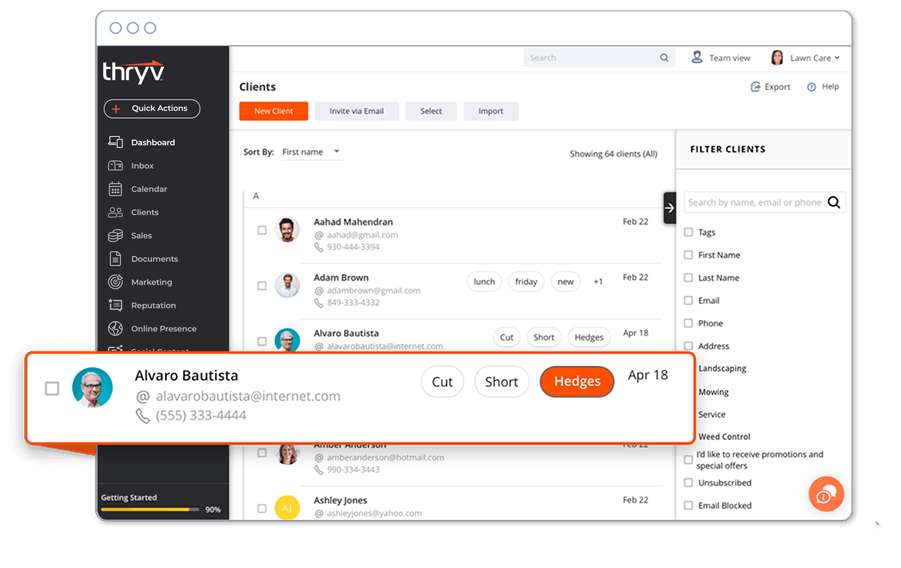
2. Import your contacts.
Import your contacts using an Excel .csv file, Gmail, or Square.
When you have all your customers located in one place it makes it easy to communicate and send a message, send an invoice, schedule an appointment, and more.
Begin importing your customer list by navigating to Clients and clicking Import.
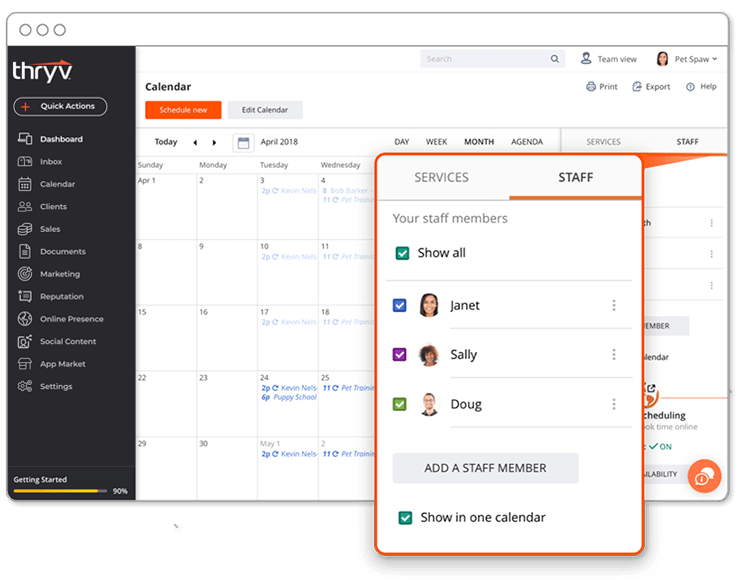
3. Sync your calendar, add staff, and set up services.
Sync your own calendar to Thryv and fill open appointments 24/7 by navigating to Settings > Availability & Calendar.
Once you’ve synced your calendar, add services and staff members to manage your day-to-day operations. Add staff members by navigating to Settings > Staff. Add all of your offered Services under Settings > My Services.
Allow customers to book online? Enable online booking to allow a list of your services to be visible to customers inside your service menu.
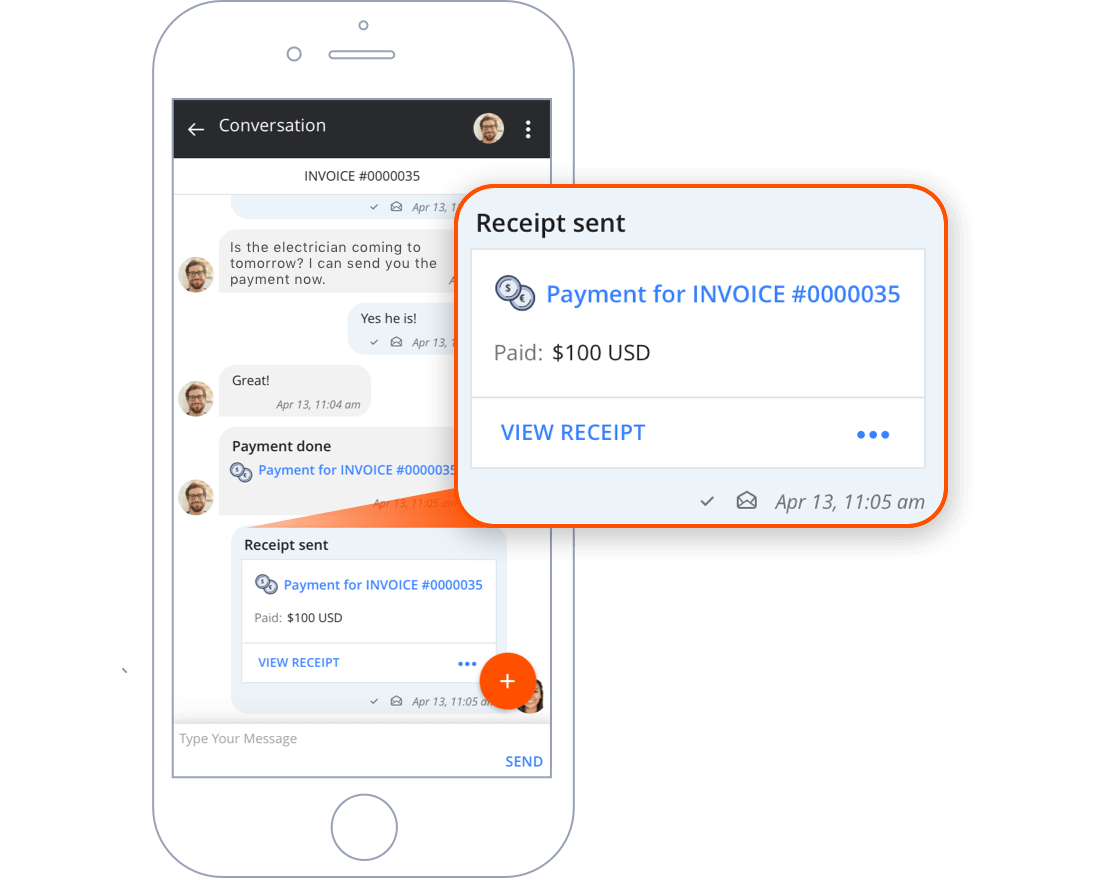
4. Connect to payments and send your first invoice.
Create an account with Square®, Stripe®, Braintree and/or PayPal® to accept online payments at a competitive rate, including the ability to accept Mobile QuickPay payments.
Once you’ve created your Payment Processing account, click Connect to Square, Stripe, Braintree, or PayPal
by navigating to Settings > Payments.
5. Claim your keyword and Send your first announcement.
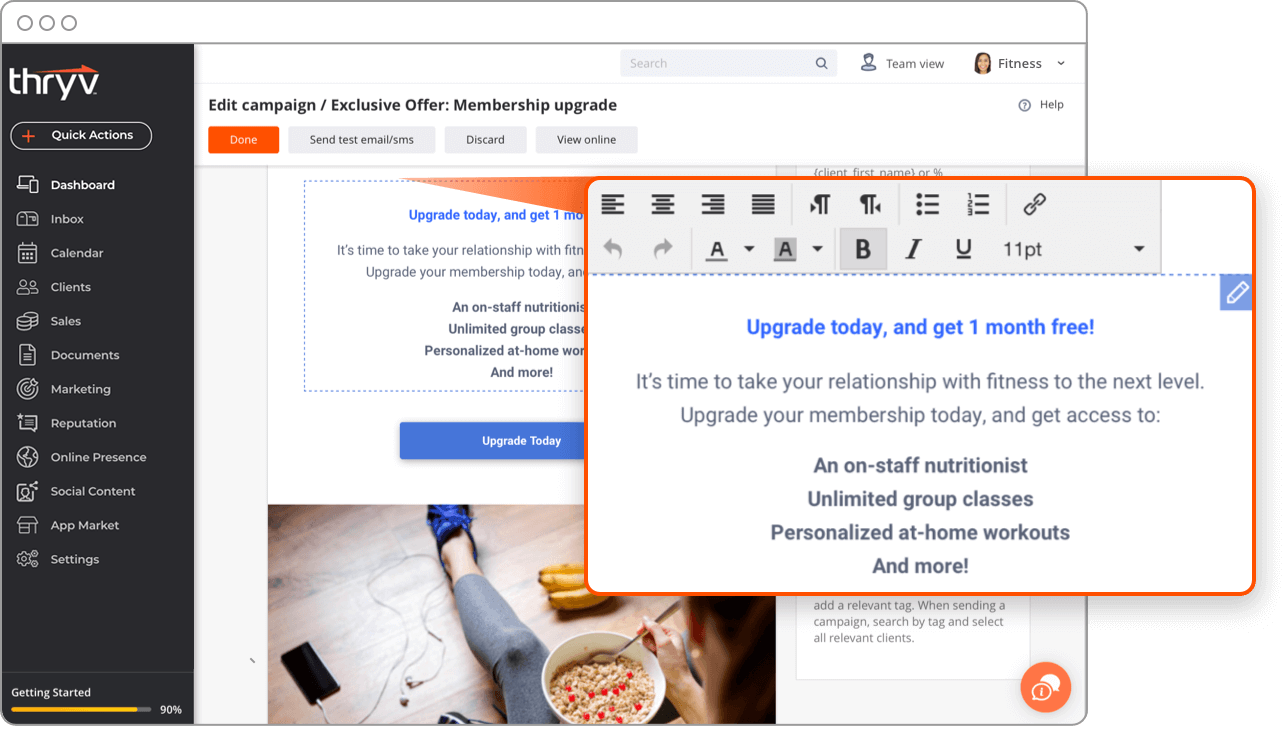
Claim a keyword and create your first Announcement to promote your business and attract new customers.
Your customers can text this keyword to 85-100 to opt-in to your promotions list.
Claim a keyword by clicking Settings > Campaigns. Create your first Announcement or select one from the library by navigating to Marketing > Announcements.
6. Take Thryv on the go.
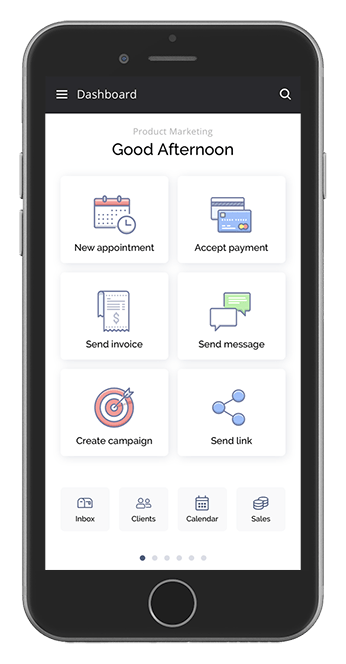
Last, but certainly not least, run your business from the palm of your hand. Download our mobile app and start Thryv'ing wherever you go.
Download on the Apple App Store or get it on Google Play today!
You're now ready to adapt your business with Thryv! Don't worry, You're not alone. We are in this together.
In-App Support
Click the Resources and Support Center icon in the lower right corner of your Thryv for hundreds of how-to guides and videos. Includes ability to chat with us if you need a helping hand.
Daily Webinars
Attend your first webinar, and every one after that dedicating just 20 min of your day. Learn how to get the most out of Thryv to communicate with your customers and manage your day, while getting paid faster. Sign up for a webinar.
Community Facebook Group
Join our Facebook Group specific for our Thryv Adapt program. Share best practices, ask questions, and share ideas with like-minded businesses using Thryv to run their business digitally. Join Facebook group.
Blog
Subscribe to our blog and stay in-the-know about the latest trends with small businesses. Subscribe.
Support Center
Check out our Support Center at learn.thryv.com
and stay up to date on all things Thryv, including video tutorials, walk through guides, frequently asked questions, and latest releases. Includes special COVID-19 section to learn about how other businesses are using Thryv to go virtual.
An Overview of Your end-To-end Software
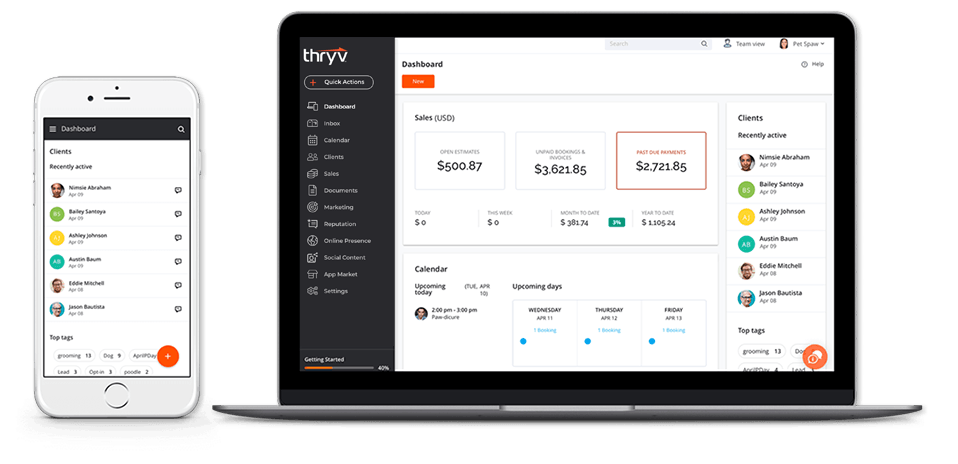
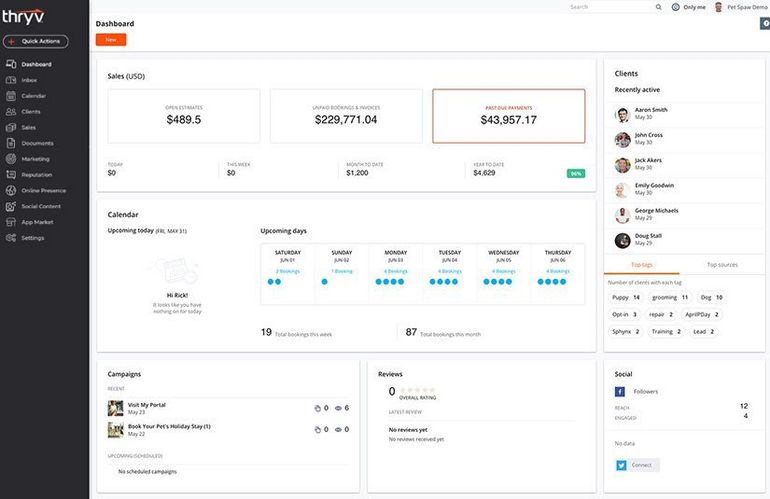
Welcome to Thryv's dashboard.
This is where you can see everything Thryv's doing for your business at a glance.
1. Sales & Payments
Process payments, send estimates and invoices and spend less time tracking your money. Know how much money you have coming in from any device, 24/7, on your dashboard.
LEARN MORE
2. Calendar
Manage your day, your staff and all of your appointments at a glance, in one place. Follow-ups and reminders ensure your customers never miss another appointment.
LEARN MORE
3. Announcements
Send large scale, multi-channel announcements with ease. Once sent, measure your success with detailed insights and analytics.
LEARN MORE
4. Inbox
Keep all of your conversations in one place, send messages based on how your customers expect to receive communication, via SMS/text and email.
LEARN MORE
5. Clients (CRM)
Contacts are the heart of Thryv. Import your contacts and gain a new, fully functional CRM. See recently active clients and find customer information faster than ever.
LEARN MORE
6. Online Presence
Ensure all your business listing information is updated and accurate online, synced with over 60+ online networks.
LEARN MORE